 SpaceTag
macOS 14 Sonoma 以降 · Apple SiliconmacOS 14 Sonoma+ · Apple Silicon
Mac の Space に、名前を。 Name your Mac Space.
Mission Control を開いた瞬間、どれがどれか迷わない。各 Space に名前をつけておくだけ。壁紙への書き込みは、もう必要ありません。 The instant you open Mission Control, you know which is which. Just give every Space a name — no more baking labels into your wallpaper.
サブスクリプションも登録も不要。No subscription. No sign-up.
Client A
デスクトップ 1Desktop 1
Design
デスクトップ 2Desktop 2
Personal
デスクトップ 3Desktop 3
写真編集Photo Edit
デスクトップ 4Desktop 4
ScreensScreens
こんなの、欲しかった。Just what you wanted.
毎日くり返していた小さな迷いと手間を、
減らします。It simply reduces the small hesitations and busywork you repeated every day.
01
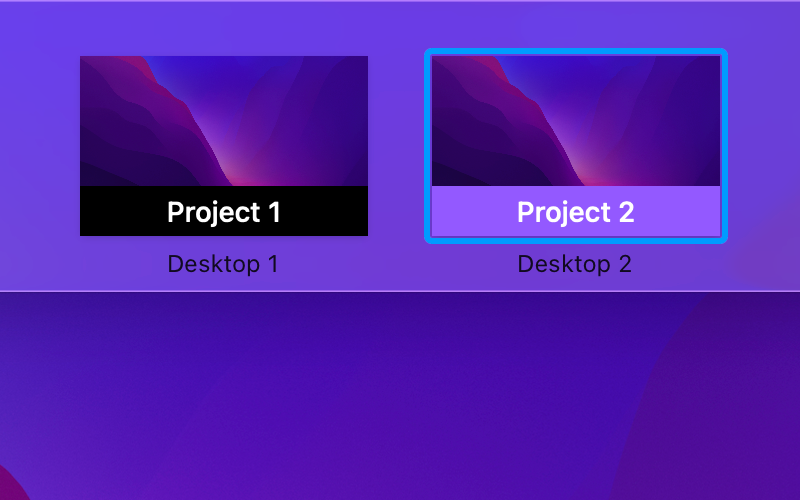
開いた瞬間、すぐ分かる。Know which is which, instantly.
Mission Control を開けば、
各サムネイルに色つきラベルを表示。命名はメニューから数秒で完了。Open Mission Control and every thumbnail shows a colored name label. Naming takes just a few seconds from the menu bar.
02
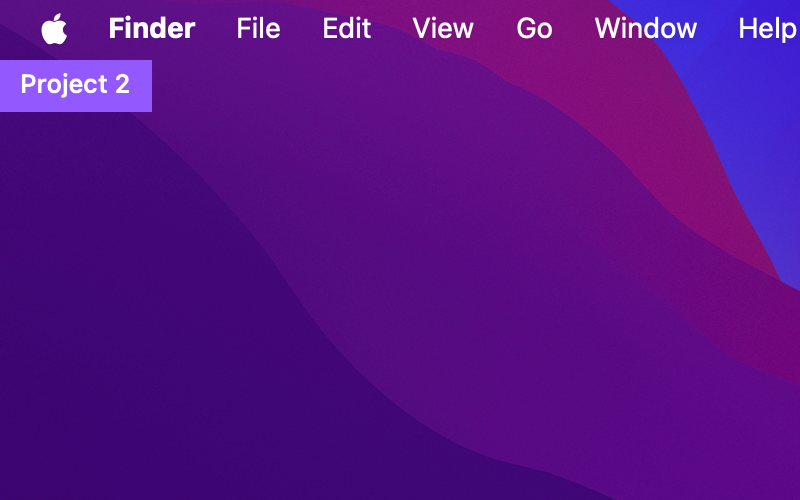
デスクトップにラベル表示。A label on your desktop.
- 今いる Space の名前をデスクトップに常時表示The current Space's name always visible on your desktop
- 位置は四隅と各辺の中央の8箇所から選べるEight positions: the four corners and the middle of each edge
- サイズ・色・形・余白・不透明度をカスタマイズCustomize the size, color, shape, padding, and opacity
- ディスプレイごとに別の設定にもできるGive each display its own settings
03
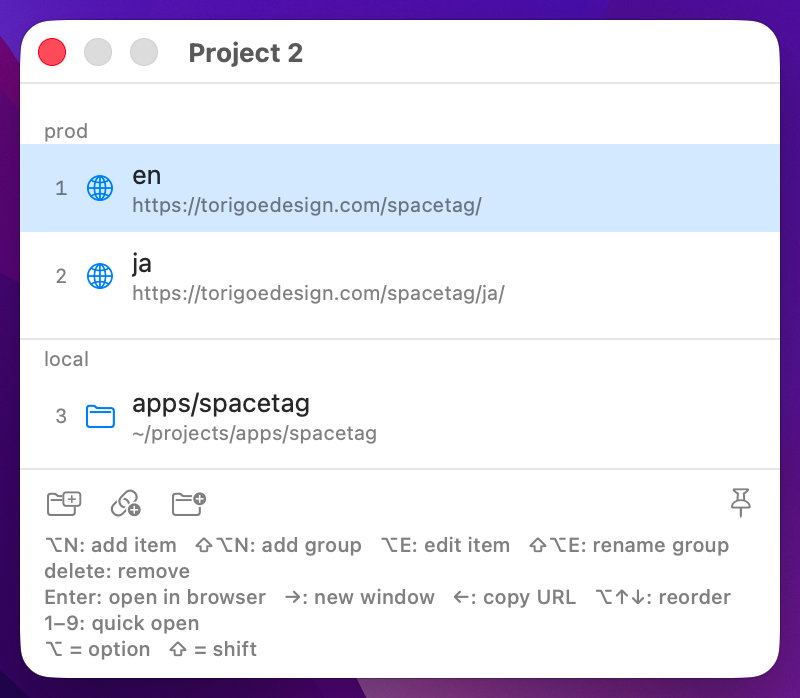
Space ごとのブックマーク。Bookmarks per Space.
共通Anywhere
- ⌥⌘B でいまの Space のブックマークを呼び出す⌥⌘B brings up the bookmarks for the Space you're on
- 追加は ⌥N(項目)と ⇧⌥N(グループ)Add with ⌥N (item) or ⇧⌥N (group)
- ⌥C で直前まで見ていたページやフォルダを取り込む⌥C captures the page or folder you were just looking at
- ← でパスや URL をクリップボードにコピー← copies the path or URL to the clipboard
- 「本番」「テスト」などのグループに分けて整理できるSort them into groups like “Production” or “Testing”
- ⌘+ ⌘- で文字を大きく。ディスプレイごとに覚える⌘+ ⌘- scales the text, remembered per display
URL
- Enter でブラウザで開くEnter opens it in your browser
- → なら新しいウインドウで開く→ opens it in a new window
- ⌥E で開くブラウザを指定できる。アカウントで使い分けたいときに⌥E sets the browser it opens in — handy when you keep accounts apart
ローカルパスLocal paths
- フォルダは Enter で開くアプリを選ぶ(Finder・エディタなど)Enter on a folder lets you pick the app — Finder, an editor, whatever opens it
- → でターミナル、⇧→ でエディタ→ for your terminal, ⇧→ for your editor
- Git リポジトリはブランチ名も表示するGit repositories show the current branch
FAQ
よくある質問Frequently asked
SpaceTag は macOS の非公開 API とアクセシビリティ権限を使うため、Mac App Store の審査対象外です。そのためサイトから直接配布しています。SpaceTag uses private macOS APIs and Accessibility permissions, which fall outside Mac App Store review. So we distribute it directly from our site.
はい、完全に無料です。すべての機能が使え、期限も登録もサブスクリプションもありません。Yes, completely free. Every feature is available, with no time limit, no sign-up, and no subscription.
非公開 API に依存するため、OS の更新で停止する可能性があります。だからこそ、まずはご自身の環境で実際に動くかを確認してからお使いください。動かなくなった場合もアップデートでの対応に努めます。Because it relies on private APIs, an OS update may stop it. So please check it actually runs in your own environment first. If it breaks, we'll do our best to address it in an update.
はい。台数の制限はありません。あなたの Mac であれば、何台でも自由にお使いいただけます。Yes. There's no device limit — use it on as many of your Macs as you like.
すべてローカルに保存されます。名前・カラー・ブックマークは「プロジェクト」として保存され、Space の UUID に割り当てられるため、並べ替えや移動にも追従します。クラウドには送信しません。Everything is stored locally. Names, colors, and bookmarks are saved as “projects” assigned to each Space's UUID, so they follow reorders and moves. Nothing is sent to the cloud.
消えません。名前・カラー・ブックマークは「プロジェクト」として一覧に残り、新しい Space に割り当て直せばそのまま復元できます。同じプロジェクトを複数の Space に割り当てて、マルチディスプレイで共有することもできます。No. Names, colors, and bookmarks live on as a project in your list — assign it to a new Space to restore everything. You can also assign one project to multiple Spaces to share it across displays.
はい。インターネット接続は必要ありません。完全にオフラインで動作します。Yes. No internet connection is required — it works completely offline.
アクセシビリティ権限が必要です。Mission Control のサムネイル上にラベルを重ねて表示するために使用します。It needs Accessibility permission. It's used to overlay labels on top of Mission Control's thumbnails.
設定 → 一般 → ショートカットから、別のキーへの変更や解除ができます。SpaceTag が起動中は ⌥⌘B をシステム全体で受け取るため、同じキーを使うアプリ(ブラウザのブックマークマネージャなど)と重なる場合は変更してください。You can change or remove it in Settings → General → Shortcuts. While SpaceTag is running it captures ⌥⌘B system-wide, so if another app uses the same keys (such as a browser's bookmark manager), pick a different combination.
Mission Control 上部の Space バーが折りたたまれていると、サムネイル自体が表示されないため、ラベルも出ません。画面のいちばん上にカーソルを当てて Space のサムネイルを展開すると表示されます。キーボードの Control + ↑ で開いたときに起きやすく、トラックパッドの3本指スワイプでは展開されやすいです。なお、この状態でもメニューバーと画面隅の表示は現在の Space 名を出し続けます。If the Spaces bar at the top of Mission Control is collapsed, the thumbnails themselves aren't shown, so no labels appear. Move your cursor to the very top of the screen to expand the Space thumbnails and the labels show up. This tends to happen when you open Mission Control with Control + Up; a three-finger swipe up usually expands it. Even in this state, the menu bar and the corner overlay keep showing the current Space name.